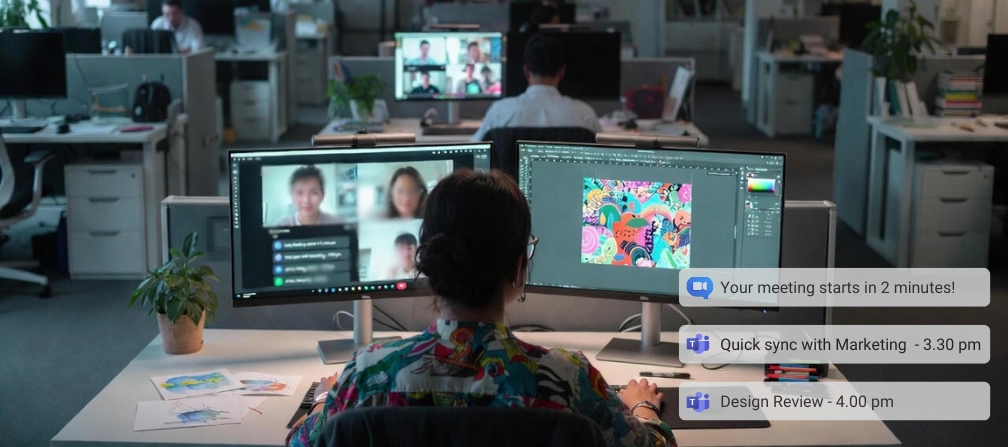




TL;DR
- Remote-work tools can unintentionally expose employees’ private lives, personal messages, financial info, family details, and confidential business data - sometimes in seconds.
- The highest-risk areas are: screen sharing, video/audio tools, messengers, shared workspaces (especially AI), invasive monitoring software, and hidden data collectors (IoT, extensions, old VPNs).
- Most incidents happen because of message previews, auto-enabled cameras and microphones, auto-join and auto-accept calls features, wrong-screen sharing, misconfigured shared spaces, screenshot-based monitoring, or silent background tracking.
- These leaks damage trust, morale, customer relationships, and can lead to legal, reputational, or employment consequences.
- Employees can drastically reduce risk by: disabling message previews, using Do Not Disturb, sharing windows only, locking screens, closing personal tabs/apps, and reviewing permissions in shared spaces and AI tools.
- For organizations, the safest long-term approach is to provide proper employee training (download the checklist PDF included in this article) and to use only non-invasive monitoring tools such as WorkTime - productivity metrics only, with no screenshots, no keystrokes, no cameras, and no content tracking.
In this article
Remote work, a sweet dream - until privacy fails
Remote work, yeah! No commute, more personal time, flexible schedules - every employee’s dream. Managers benefit too: reduced office costs and access to global talent pools. And it truly is amazing - until one unexpected, ridiculous, embarrassing, or even damaging moment suddenly exposes something personal or confidential, simply and brutally. You may think: It’s fine, I’m careful. This won’t happen to me. But embarrassing situations in remote work happen far more often than most people realize. And the longer you work remotely, the higher the chance you’ll eventually face something unpleasant or even damaging - unless you protect yourself. Please read this article to protect your privacy, your job, and your emotional well-being.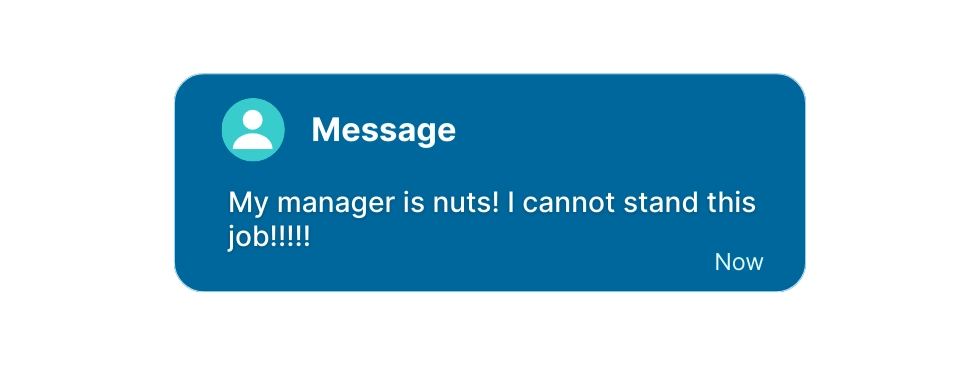
To managers and employees
This article is for both managers and employees. It explains how to create a safe working environment in remote and hybrid settings. It also helps keep the work environment healthy and productive. And to all managers: trust us - many good working relationships have ended because of one unfortunate, ridiculous, and simply embarrassing situation. Feel free to share this material with your team as part of your privacy training.The article was prepared by WorkTime, a non-invasive employee monitoring software, offering its services for 26+ years.
Why remote work creates serious privacy risks?
Remote work introduces two major conditions that make privacy failures far more likely than the office work:1. The boundaries between personal and work life get diluted
The reality is: the longer an employee works remotely or in a hybrid setup, the more blurred these boundaries become - and the easier it is for remote-work privacy to break. For example, employees often start using company laptops in a relaxed, home environment - and gradually shift into using them for personal tasks:- browsing for personal needs,
- installing personal messengers,
- asking personal questions through corporate tools,
- storing private files on work devices,
- mixing personal and work accounts.
- broken trust,
- ruined work relationships,
- reputational harm for the company,
- or even lost customers.
2. Remote work depends on tools that amplify privacy risks
When employees aren’t in the same space, you must rely on:- communication platforms,
- shared workspaces,
- cloud storage,
- messaging apps,
- collaboration tools.
Top 4 privacy weak spots in remote & hybrid work
The shift to home offices has also created new digital workplace privacy challenges. Many remote-work privacy failures are caused by simple work-from-home privacy risks: notification leaks, accidental data exposure, misconfigured cloud drives, and screen sharing mistakes. These workplace privacy breaches often happen silently, creating internal data leaks that affect both personal and confidential business information. Here are the four top privacy weak spots in remote and hybrid work. This is a high-level overview; a more detailed explanation is provided in the next section of this article (“Remote-work tools to use carefully”).1. Computer screens: the #1 cause of remote-work privacy failures
When employees work from home, the line between personal and professional life becomes blurred. Company computers and work tools gradually turn into mixed-use devices, used both for work and for private activities. As a result, employees may have personal information, private messages, financial details, or unrelated browser tabs open on their work screens. This can easily lead to accidental exposure of private or confidential business information during screen-sharing - especially with customers, external partners, or other team members. In a traditional office environment, employees naturally remember that private activity on company equipment is not acceptable; at home, this awareness fades. And needless to say, many employees simply forget to lock their screens when working remotely, further increasing the risk of exposure.Mixing personal use with work devices - and leaving screens unlocked - quickly puts private and confidential data at risk.
2. Video and sound: hidden privacy risks
Any tool involving video or voice communication can unintentionally reveal things that should remain private. Background conversations, family members, sensitive documents on a desk, or even the employee’s emotional state can be caught by the camera or microphone. A casual comment, an open document behind someone’s shoulder, or a child walking into the frame can instantly expose personal or business-sensitive information.Video and sound conferencing can easily expose private or business information. At home, it’s much easier to slip into non-work conversations without realizing others can hear them.Different tools introduce different privacy risks. Zoom privacy risks and Teams privacy risks often appear during screen sharing, while Google Meet privacy risks are commonly caused by unexpected video activation or missed mute indicators. Slack privacy risks and chat apps privacy issues usually come from notification pop-ups. Discord privacy risks are especially severe because the platform can auto-enable microphones, making it unsafe for any professional environment. Together, these shared workspace privacy problems create a complex risk landscape managers must actively control.
3. Shared tools and storage spaces: internal data leaks & exposure risks
Remote work depends heavily on shared environments: cloud drives, shared folders, project workspaces, AI tools, team chat channels, and collaboration platforms. When these spaces are misconfigured - or if employees upload the wrong file, switch the wrong folder, or respond in the wrong chat - personal or confidential business information is easily exposed.Accidental sharing is one of the most common causes of internal data leaks.
4. Hidden invasive data collection: workplace privacy breach triggers
Certain tools quietly collect more data than employees realize. Browser extensions, logging VPNs, old utilities, and background monitoring apps may record activity, scan pages, or capture metadata that was never meant to be shared. These silent collectors are especially risky in remote environments, where employers and employees install tools, without security oversight.Hidden invasive data collection can harm employee privacy, undermine company reputation, and negatively affect overall well-being.
Remote-work tools that create privacy risks
Messengers & chat apps: notification leaks and chat app privacy risks
1.1. Pop-up notifications: screen-sharing privacy risks
Employees working remotely may install personal messengers on their work devices or use their work accounts for private conversations. The consequences can be embarrassing and even serious. By default, almost all messengers (Teams, Slack, WhatsApp, Viber, iMessage, Facebook Messenger, Signal, Telegram) show the sender’s name and part of the message in a pop-up notification. As a result, very private information can leak - leading to reputational damage within the team, awkward situations during customer meetings, and in some cases even job loss.Across all major messengers the core privacy risk is the same: by default, they display the sender’s name and part of the message in pop-up notifications on every major system.Across all major messengers the core privacy risk is the same: by default, they display the sender’s name and part of the message in pop-up notifications on every major system. Screen-sharing privacy risks increase when employees mix personal and work activity on the same device. During screen sharing, one unexpected notification can instantly expose private conversations or sensitive business details.
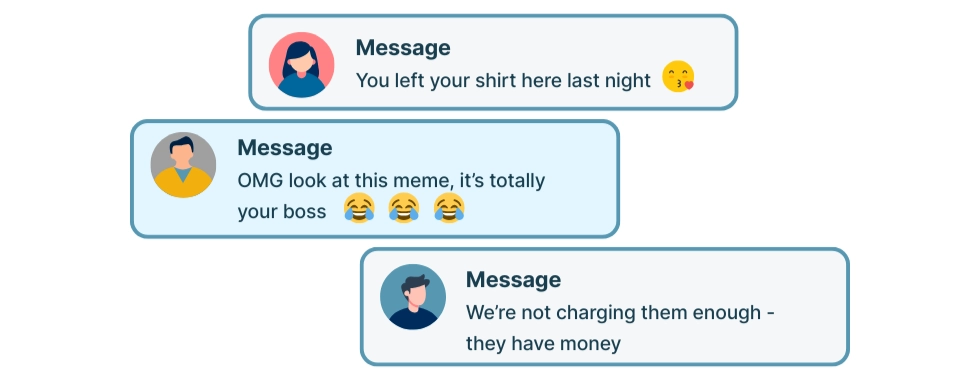
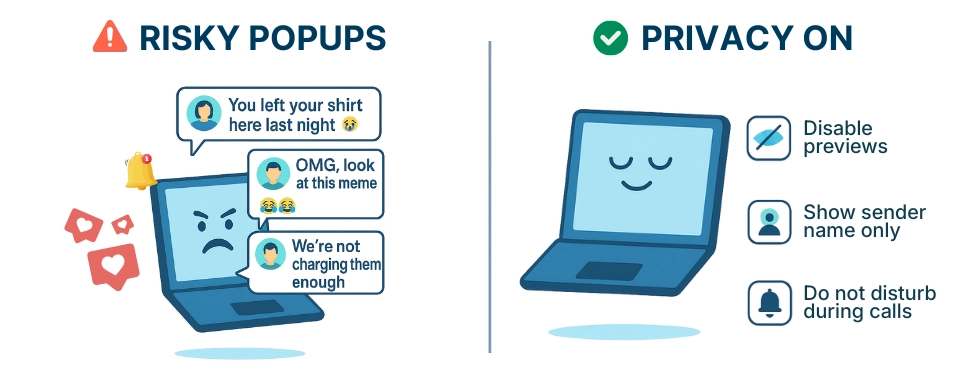
1.2. Auto-join & auto-accept: accidental audio exposure (video meeting mistakes)
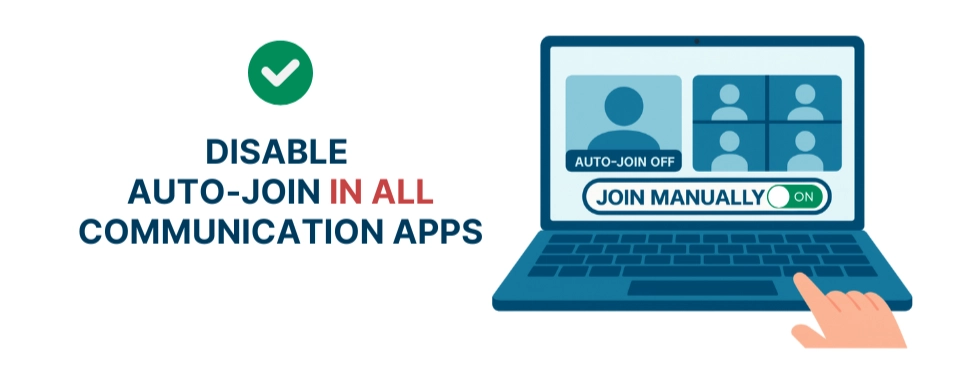
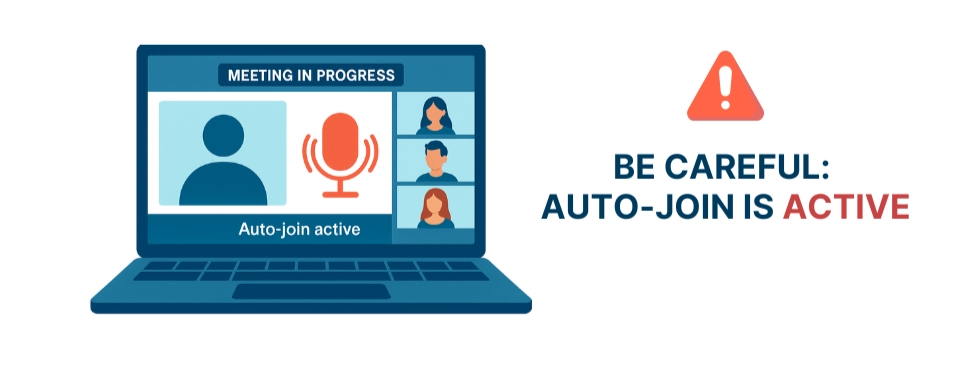
Many collaboration tools and messengers offer auto-join or auto-accept options for calls and meetings. When these features are enabled, the app may connect you to a call instantly - without playing a ringtone or showing a clear alert. If your microphone is not muted, you may start broadcasting background conversations, household noise, or private discussions without realizing you are in a meeting. Combined with OS-level mute confusion (covered in the next section on operating system-related traps), this auto-connect behavior makes accidental audio exposure even more likely in remote and hybrid environments.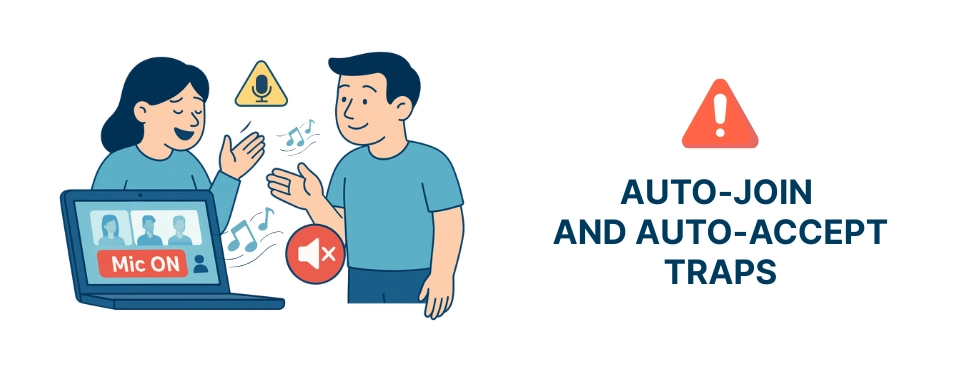
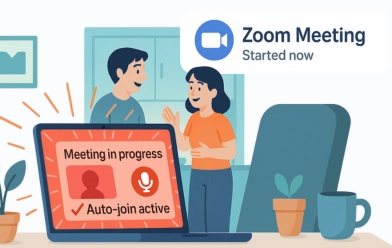
Real case:
Some conferencing apps auto-join meetings when the user clicks notification banners. One employee had their speakers muted from the previous night. They accidentally tapped a notification from Zoom on their trackpad, joining the call without realizing it. The microphone was on, and coworkers could hear them talking to their partner in the kitchen.
2. Operating systems: OS-level traps & WFH privacy risks
Sometimes employees assume that disabling “sound” on their computer also disables the microphone. In reality, these are two separate controls. Muting system audio (the speaker icon or a crossed-out horn symbol) only stops you from hearing others - it does not mute your microphone.Muted speakers + live microphone = a hidden OS-level privacy trap! Muting system audio does not mute your microphone!As a result, employees may believe they are offline, unavailable, or not in a call, while their microphone continues transmitting audio in the background. This issue occurs across Windows, macOS, and mobile devices.
This issue occurs across Windows, macOS, and mobile devices.In tools like Teams, Zoom, Google Meet, Slack Huddles, or other messengers, the employee may miss the incoming call notification but still broadcast household conversations, private discussions, or confidential information.
- Complaints broadcast unintentionally: users mute the speaker, think they're “off,” but their mic stays live and others hear private comments.
- Missed call but active microphone: users miss the ringtone due to speaker mute, but the app still opens an audio channel.
- Bluetooth mute confusion: headset mute toggles speaker output but not the microphone.
- System mute key pressed accidentally: laptop mute buttons silence speakers but not the mic.
- Mobile device silent mode: Android/iOS silent mode mutes only notifications, not microphone input during calls.
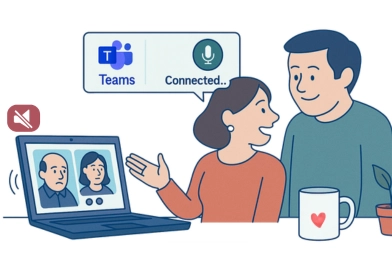
Real case with Teams:
the “missed call” that wasn’t missed An employee muted their laptop speakers during a meeting, believing this made them unavailable. When a colleague tried to call them on Teams, the ringtone was silent - but the app still opened the audio channel. The employee didn’t realize they were connected and continued a private conversation at home. Others on the call heard everything until someone interrupted. The employee had muted the speaker, not the microphone, creating an accidental privacy breach.

Real case with Zoom:
complaining out loud During a stressful workday, an employee hit the hardware mute key on their Windows laptop. They believed they were muted in a Zoom meeting and couldn’t hear participants. Frustrated, they muttered a comment about a coworker - unaware their microphone was still live. Everyone in the meeting heard it. The OS had muted only the output, not the input, and Zoom continued transmitting audio.
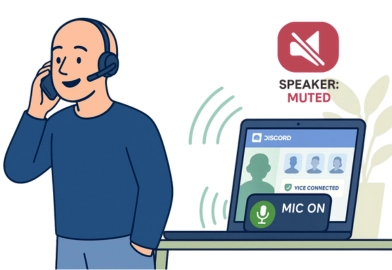
Real case with Bluetooth headset:
A remote worker using a Bluetooth headset pressed the mute button on the device, assuming it muted the microphone. In reality, the headset muted only the speaker, and the microphone stayed active. The employee took a phone call with a family member while still connected to Discord. The entire team in the voice channel unintentionally overheard the conversation.

Real case with a mobile phone
Silent mode on mobile doesn’t silence the microphone. A hybrid team member joined a Google Meet session from their phone while commuting. They put the phone in silent mode, thinking it prevented others from hearing them. However, silent mode disabled notifications - not the microphone. Their background conversation with a colleague in the car was broadcast to the entire meeting until someone asked them to mute inside the app.
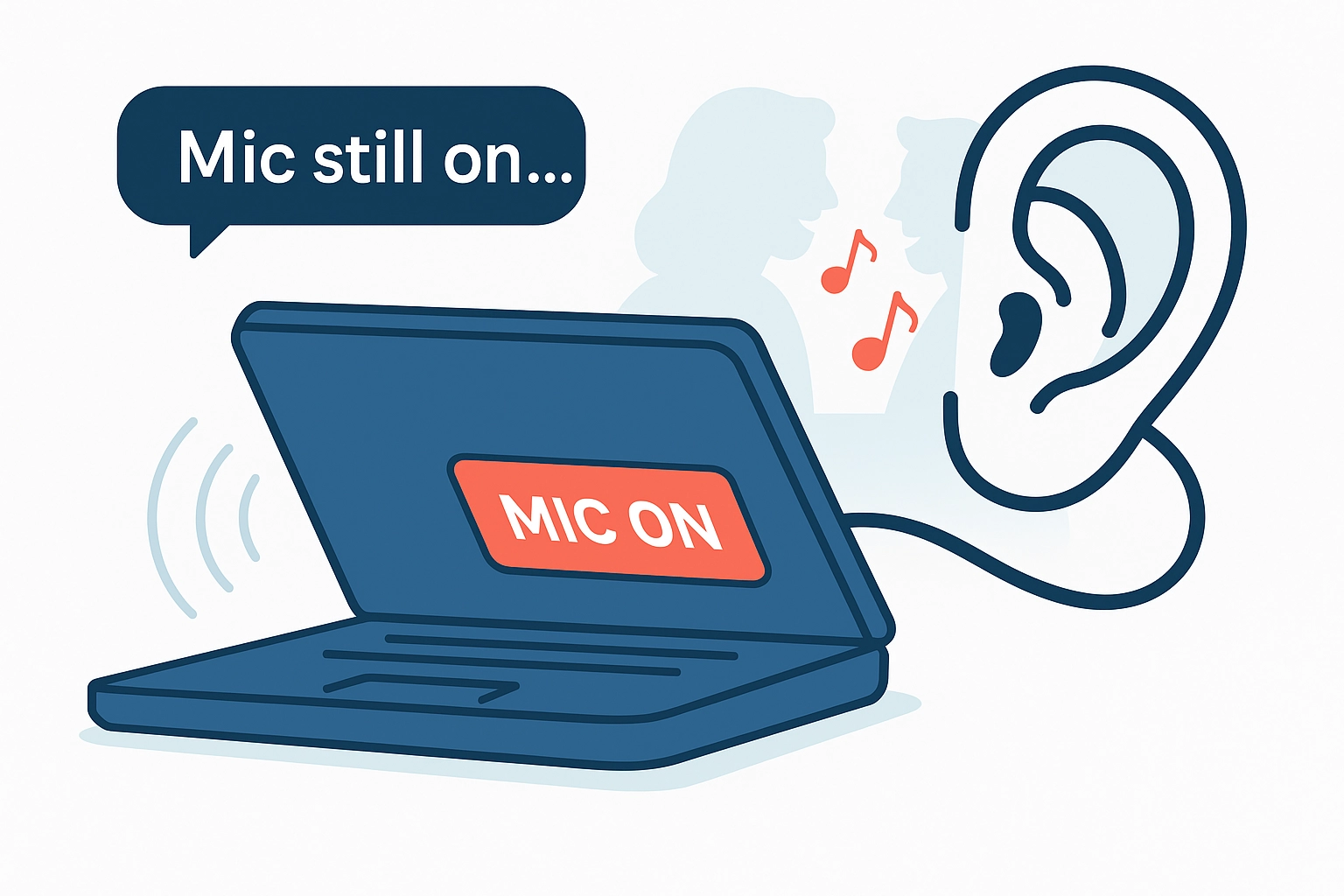
Real case with laptop lid half-closed
An employee closed their laptop halfway after muting the speakers and walked away. Some laptops do not disable audio input until the lid is fully shut. Their microphone remained active in a still-running call, capturing private background discussion between household members.
- use the mic-mute button inside the app,
- check the OS microphone indicator,
- test audio before joining a call.

3. Gaming & community voice platforms: the most dangerous workplace privacy risks
Discord is fundamentally unsafe for remote or hybrid work. It was built as a gaming and community chat platform, not a business tool. Voice channels automatically activate the microphone the moment someone joins, meaning private conversations, family background noise, or confidential business details can be transmitted instantly - often without the employee realizing it. Access controls are weak, and it’s easy for the wrong people (including former employees or guests) to remain in channels unnoticed. Discord also lacks essential enterprise-grade protections such as SOC 2, HIPAA, proper GDPR handling, strict role permissions, and secure auditing. Personal and work identities mix in the same account, notifications show message previews, and shared servers often include unrelated individuals. Altogether, these factors make Discord one of the most privacy-dangerous and inappropriate tools for any professional environment.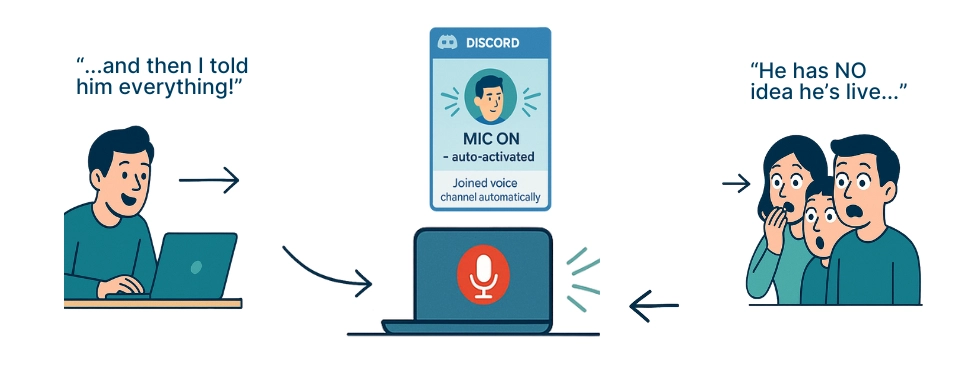

4. Any apps with cameras, video, or live modes (Zoom, Teams, Google Meet): major video call privacy risks
Camera-based platforms can activate video automatically. This creates a high risk of unintentionally capturing private parts of an employee’s home life. These apps may also store recordings or screenshots that can later leak. In addition, they all include screen-sharing features, which makes it very easy for employees to accidentally share the wrong window, a private tab, or personal content during a live session.Camera-based platforms create a high risk of unintentionally capturing aspects of an employee’s private life. Also, screen-sharing features make it very easy for employees to accidentally share the wrong window.
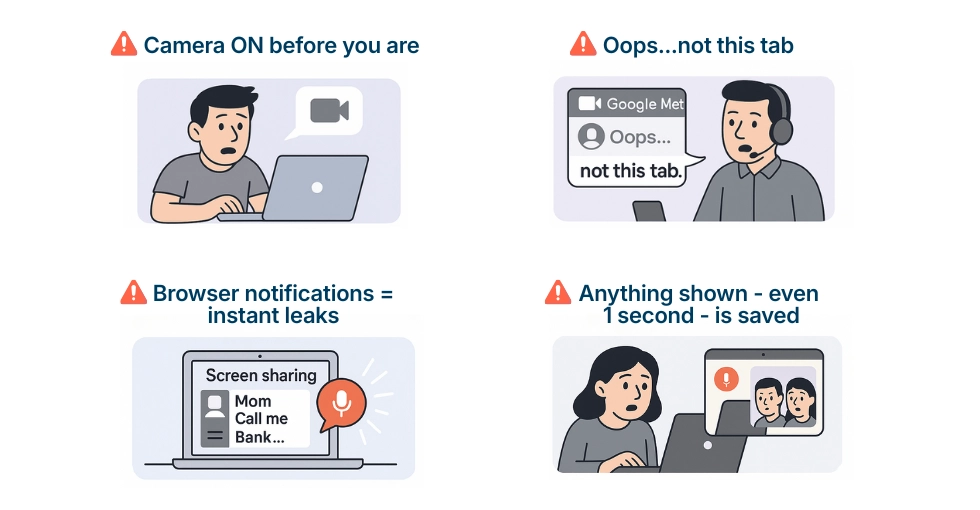
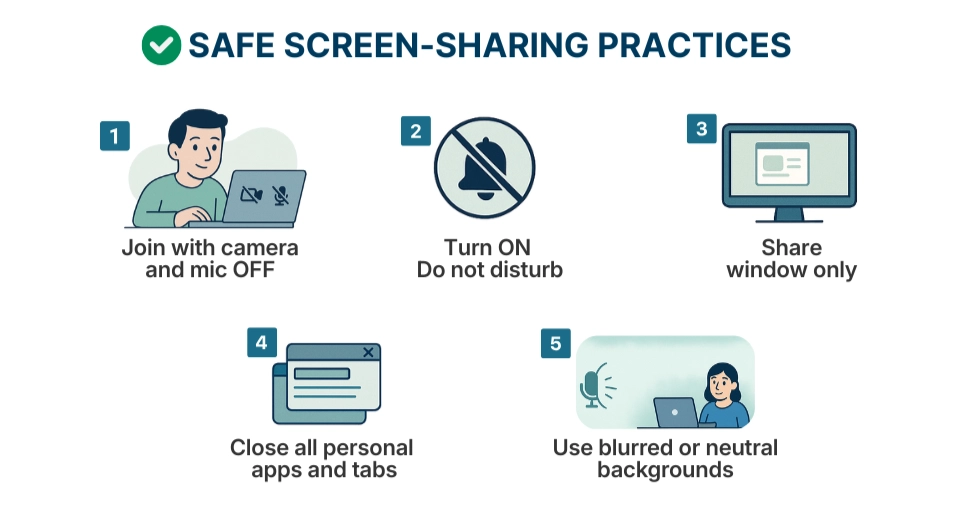
Zoom is one of the most widely used video apps - and one of the easiest places for privacy failures.
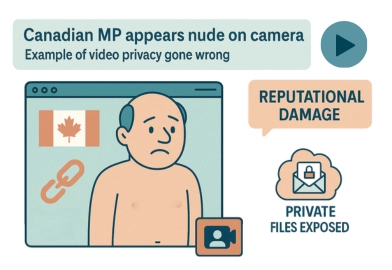
Real case with Zoom:
A Canadian MP who appeared nude on camera became a global example of how unreliable video privacy is - even for public officials. Similar incidents have happened to teachers, lawyers, doctors, and professionals in virtually every field. Consequences: reputational damage, loss of trust, unconsented redistribution of screenshots or recordings (often viral videos), accidental exposure of private files, messages, or applications during screen sharing.
5. AI tools: AI workplace privacy risks & AI data leakage (ChatGPT, Copilot, Notion AI)
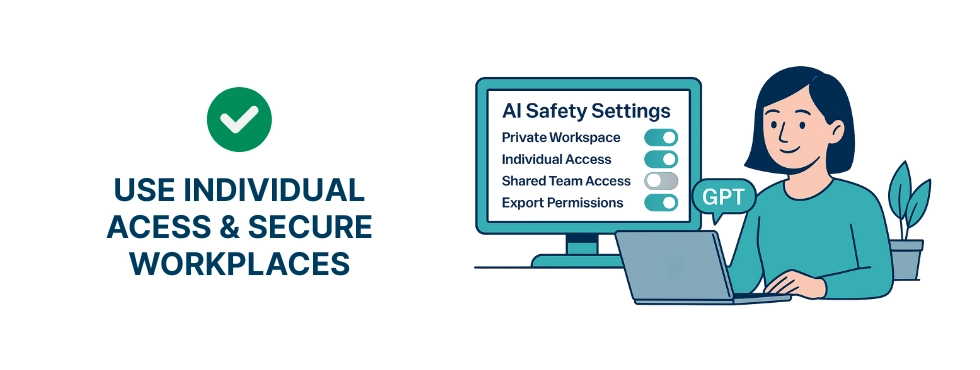
Shared accounts and shared workspaces mean that any employee may see what others have written. In AI tools like ChatGPT, Copilot, Claude, or Notion AI, prompts and outputs can automatically land in a common workspace if permissions are misconfigured. Information can often be copied, exported, or forwarded without leaving any trace. Employee conversations become visible to the entire team. Personal notes or drafts end up in shared company spaces. Misconfigured workspaces lead to accidental exposure of sensitive business data. AI workplace privacy can fail when prompts and documents are automatically saved to shared team spaces.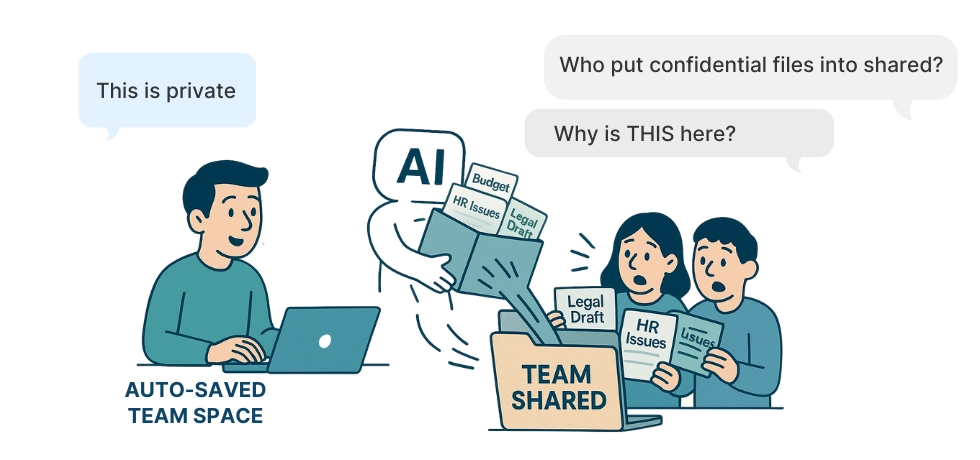
Misconfigured workspaces lead to accidental exposure of sensitive business data. AI workplace privacy issues often arise when employees use shared AI accounts or misconfigured workspaces.
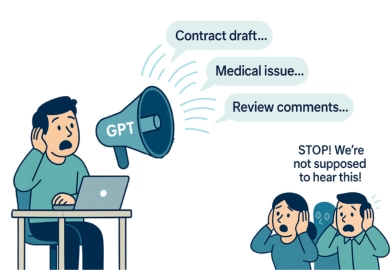
1. ChatGPT
Real case 1:
An employee testing ChatGPT with a client contract accidentally saved the conversation in the company’s shared workspace - the entire legal team suddenly saw the confidential document.
Real case 2:
A support agent used a shared ChatGPT account to troubleshoot an issue and discovered private medical details another agent had entered earlier - a clear privacy violation.
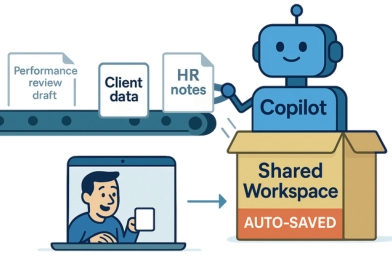
2. Copilot
Real case:
A designer used Copilot to rewrite a personal performance review draft, not realizing the prompt history was visible to everyone in the shared Microsoft 365 environment. The manager saw it before the scheduled review.
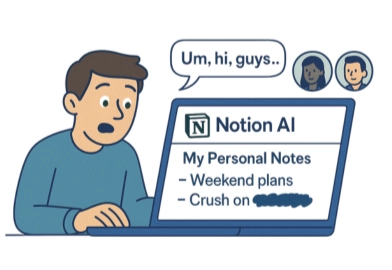
3. Notion AI
Real case:
An intern wrote personal notes in Notion AI, thinking it was a private page; the page automatically synced into the team’s shared knowledge base. The whole department saw the entry.
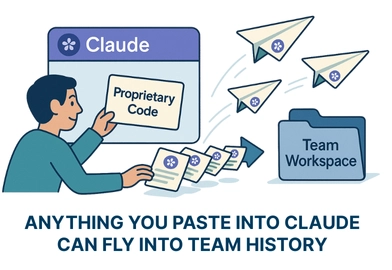
4. Claude
Real case:
A developer pasted proprietary code into Claude for analysis, but the workspace was configured for “Team access” - the entire engineering group could now open and export the snippet.
6. Invasive employee-monitoring tools: screenshot monitoring risks & employee privacy risks
Some monitoring tools become a privacy risk themselves because they rely on highly intrusive methods. According to publicly available product descriptions and independent reviews, solutions like CleverControl, Spyrix, and Kickidler are frequently described as supporting features such as webcam capture, hidden screenshots, keystroke logging, real-time screen streaming, continuous screen recording, and clipboard monitoring. In some reviews, Spyrix is also noted for operating in stealth mode, which increases the risk of capturing an employee’s private surroundings or family members without clear awareness. Products marketed as “security” or “DLP,” such as StaffCop, SearchInform, and WebWatcher, are also reported in user feedback and industry analyses as collecting extensive data, including full screen recordings, keystrokes, application activity, and, in certain configurations, webcam images. Some reviewers classify WebWatcher as “spyware-grade” due to the breadth of data it can log. Because these tools may run silently in the background, experts often consider them among the most privacy-sensitive solutions on the market. Other monitoring platforms like TimeDoctor, Hubstaff, ActivTrak, and Teramind are commonly described in public reviews as “heavy tracking” tools, relying on periodic screenshots, screen-activity analysis, GPS tracking, and detailed session metrics. While intended for productivity oversight, screenshot-based methods are seen by many experts as invasive in environments where personal information, private messages, or sensitive business content may appear on employees’ screens. Overall, invasive monitoring can erode trust, increase stress, conflict with compliance requirements such as GDPR, HIPAA, GLBA, or CCPA, and amplify the consequences of any data breach. When detailed content is captured - intentionally or unintentionally - it may expose deeply personal and confidential information far beyond what is necessary or appropriate for workplace monitoring.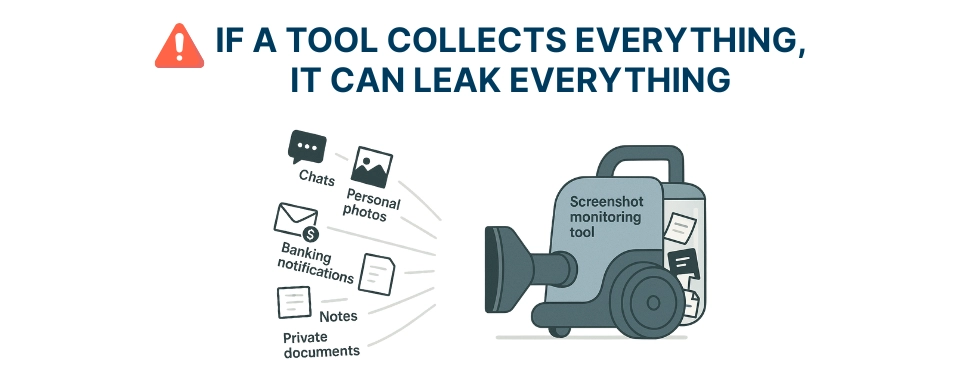
The biggest issue is that companies often don’t realize how much personal and sensitive data invasive monitoring tools collect - and once that data exists, it can be leaked, accessed, or misused in ways no one ever intended
Real case:
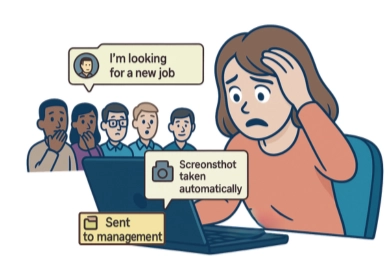
An employee received a private message from her boyfriend saying he was looking for another job. The message popped up as a desktop notification at the same moment the monitoring software took its scheduled screenshot. The screenshot automatically went to management. Within hours, the boyfriend was confronted and terminated - not because of his performance, but because a monitoring tool captured a personal, unrelated conversation he never meant to share. A single screenshot destroyed trust, privacy, and ultimately his employment.
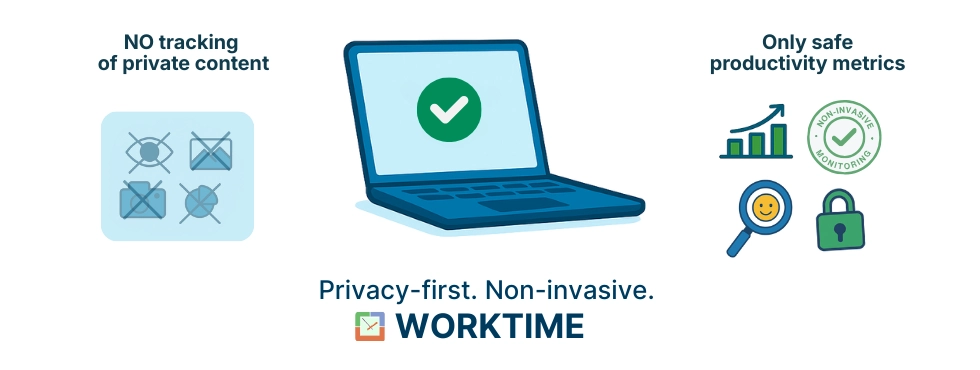
WorkTime offers a fundamentally different approach to employee monitoring. Instead of recording screens, capturing cameras, logging keystrokes, or tracking private content, WorkTime focuses exclusively on safe productivity metrics: active and idle time, application and website usage, logins, logouts, and overall workflow patterns.WorkTime keeps personal life completely out of monitoring. No cameras, no screenshots, no video recording, no chat or email scanning, and no content tracking of any kind. This eliminates the threat of exposing private messages, confidential documents, medical or financial information, or any sensitive home-office environment. At the same time, WorkTime provides companies with reliable, compliant productivity insights needed to support operations, improve attendance, and detect real workflow problems - all in a respectful, non-intrusive way that builds trust.
| Feature/tool | WorkTime | Competitor 1 | Competitor 2 | Competitor 3 |
|---|---|---|---|---|
|
Non-invasive (NO screenshots/keystrokes) |
 |
 |
|
|
|
HIPAA-safe mode |
|
|
|
|
|
GDPR-safe mode |
|
|
|
|
|
80+ transparent & detailed performance reports |
|
|
|
|
|
25+ years of experience |
|
|
|
|


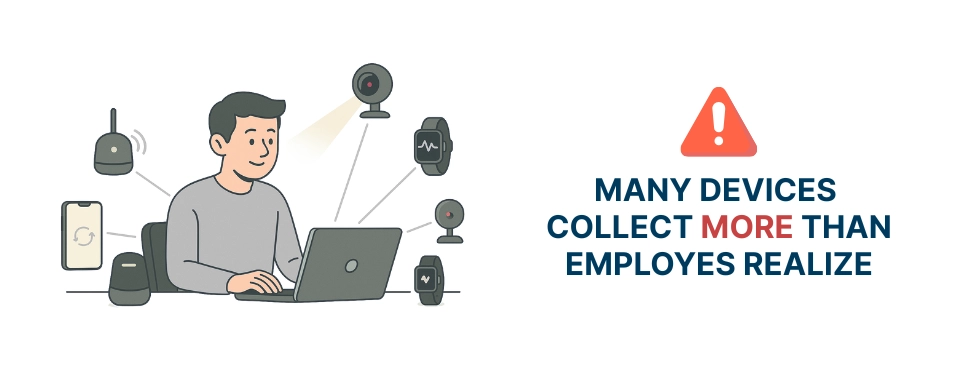
7. Other examples of hidden data collection risks
- Home IoT devices (smart speakers, cameras, TVs)
- Shared household devices used by multiple people
- Cloud services and automatic photo/video sync
- Outdated VPNs that log user activity
- Fitness trackers, sleep monitors, and corporate wellness programs
- Messengers that create chat backups (WhatsApp, Telegram)
- Browser extensions and add-ons

Statistics behind remote-work disasters
Nearly 40% of remote workers have accidentally shared something on screen they didn’t intend to. Source: ResumeBuilder Survey (2022), Forbes coverage.
47% of employees have had a private message pop up during a work meeting. Source: Superhuman Email Distraction Survey, 2023.
One in four employees (25%) reports at least one embarrassing moment on a video call. Source: Cisco Hybrid Work Report, 2022.
58% of companies experienced accidental data exposure caused by misconfigured cloud or shared workspace settings. Source: IBM Security X-Force Report, 2023.
Industry analyses show that over 60% of employee monitoring tools include screenshot capture, and more than 20% include webcam-related features. Source: Industry comparison reports (e.g., PCMag, TechRadar, Forbes Advisor), aggregated.
72% of smart home devices collect data unrelated to their core function. Source: University of Chicago & Northeastern University IoT Privacy Study, 2022.
Data leaks increased by 270% during the shift to remote and hybrid work. Source: Tessian Human Layer Security Report, 2023.
Final thoughts: the privacy risks managers often overlook
Even when companies address the most visible risks - screen sharing, message notifications, cameras, shared workspaces, and invasive monitoring - several deeper threats still remain. Remote work creates legal and compliance exposure (GDPR, HIPAA, GLBA), cross-device notification leaks across Apple, Google, and Microsoft ecosystems, accidental file sharing in cloud drives, shadow IT from unapproved apps and browser extensions, and AI tools that quietly save prompts into shared team spaces. These failures damage customer trust, disrupt deals, and create long-term emotional consequences for employees who experience public or internal embarrassment. High-profile incidents across government, education, law, finance, and tech show how fast remote-work privacy can collapse - even for trained professionals. Protecting your team begins with awareness, consistent training, non-invasive monitoring, and a clean, well-governed digital environment where employees can work confidently and safely.Download checklist: protect your team from remote work privacy risks
For organizations looking for practical steps, the following checklists offer clear guidance on how to protect privacy in remote work. These remote work privacy best practices help prevent screen-sharing mistakes, reduce notification leaks, and improve remote team privacy. They also function as a remote work privacy checklist managers can use during onboarding and internal training:Download administrators’ checklist
Some of the items covered in these checklists include:1. Enforce company-wide Do Not Disturb (DND) rules for meetings
Ensure all employees have automatic DND enabled during calls to prevent notification pop-ups with private or sensitive content.2. Disable message previews on all company devices
Configure desktops and mobile devices to hide message preview text by default across Teams, Slack, WhatsApp, Telegram, iMessage, Facebook Messenger, and others.3. Require separate Work vs. Personal browser profiles
This isolates cookies, passwords, autofill, cloud sync, browser extensions, and prevents accidental sharing of personal tabs or accounts.4. Prohibit the use of personal accounts and personal apps on work devices
No personal messengers, social media, cloud drives, or streaming apps on work laptops. This prevents accidental exposure of private life and confidential company data.5. Standardize safe screen-sharing practices
Mandate “window-only sharing,” disable “share entire screen” by default, and provide guidance on closing personal apps and tabs before meetings.6. Implement strict access control for shared workspaces
Review permissions for cloud storage, AI tools, shared folders, and company workspaces. No shared accounts; enforce role-based access.7. Set clear rules for using AI tools (ChatGPT, Copilot, Claude, Notion AI)
Ensure employees know: no sensitive data, no personal data, no proprietary documents unless in a properly configured private workspace.8. Audit company tools for hidden data collection
Review VPN logging policies, extension permissions, old utilities, smart home devices, and other background collectors that may silently store or transmit employee data.9. Train employees on common remote-work privacy risks
Especially: message notifications, cameras activating early, wrong screen sharing, cloud misconfigurations, and shared content visibility.10. Ban non-business voice/chat platforms (Discord, Mumble, TeamSpeak, Steam Chat)
These tools can activate microphones automatically, expose private conversations, and lack enterprise-grade privacy controls.11. Replace invasive monitoring tools with privacy-safe alternatives
Avoid tools that capture screens, keystrokes, webcams, chat content, social media, or clipboard data. Choose non-invasive monitoring (e.g., WorkTime) that tracks only productivity metrics.12. Create a minimal set of approved, safe tools for remote work
Standardize video conferencing, messaging, cloud storage, and AI tools. Reduce tool sprawl - fewer apps mean fewer privacy points of failure.FAQ: remote-work privacy failures
Below are answers to the most common remote work privacy questions. These FAQs cover common remote work privacy failures, remote-work security questions, and practical remote team privacy tips that help employees avoid accidental privacy breaches.1. What are the most common privacy failures in remote work?
The most common failures include:- notification pop-ups exposing private messages,
- sharing the wrong screen or browser tab,
- microphones activating automatically,
- AI tools saving prompts into shared workspaces,
- misconfigured cloud folders,
- invasive monitoring tools capturing private information,
- browser extensions collecting data in the background.
2. Why do message notifications create so many privacy risks?
Because most messengers show the sender’s name and a preview of the message on the desktop - even during screen sharing. This means personal conversations, family matters, financial details, or sensitive business information can appear in front of customers, coworkers, or managers within seconds.3. How can employees prevent screen-sharing accidents?
The safest approach is to:- use window-only sharing,
- close all personal tabs and apps before presenting,
- enable Do Not Disturb or disable message previews,
- use a separate browser profile for work,
- avoid “share entire screen” unless absolutely necessary.
4. Are AI tools like ChatGPT, Copilot, and Notion AI safe for remote work?
They are safe only when configured correctly. Many privacy failures happen because prompts and documents are automatically saved into shared workspaces, making them visible to the whole team. Employees must avoid shared accounts, check workspace permissions, and keep sensitive information out of AI tools unless the environment is private and properly restricted.5. Why is Discord unsafe for professional environments?
Discord was built for gaming and communities, not business privacy. Voice channels can activate microphones the moment an employee joins, capturing background conversations, family noise, or confidential business discussions. Access controls are weak, personal and work identities mix, and notifications show message previews. These factors make Discord inappropriate for remote or hybrid work.6. What is the biggest privacy risk in video and audio tools?
Two things:- auto-enabled video or mic, which can expose home environments or conversations before the person is ready;
- accidental sharing of private tabs or notifications during presentations.
7. How can managers protect their teams from remote-work privacy failures?
Managers should:- enforce company-wide Do Not Disturb during meetings,
- disable message previews on work devices,
- require separate personal and work browser profiles,
- standardize safe screen-sharing practices,
- review permissions in shared workspaces,
- avoid invasive monitoring tools,
- train employees on common privacy risks.
Download administrators’ checklist
8. What are hidden data collectors in remote work?
Hidden data collectors include:- smart home devices (speakers, cameras, TVs),
- outdated VPNs that log activity,
- cloud auto-sync for photos and files,
- family-shared computers,
- fitness trackers and wellness apps,
- browser extensions,
- messaging apps that create backups.
9. What is non-invasive employee monitoring?
Non-invasive monitoring focuses only on safe productivity metrics:- active/idle time,
- application and website usage,
- logins/logouts,
- workflow patterns.
10. Why are screenshot-based monitoring tools considered risky?
Because screenshots often capture private messages, financial information, medical documents, or family content. Employees have no control over what appears on the screen at the moment the screenshot is taken. Once this data is captured, it can be stored, shared, or misused - creating legal and reputational risks for both employees and the company.