


TL;DR - summary for managers
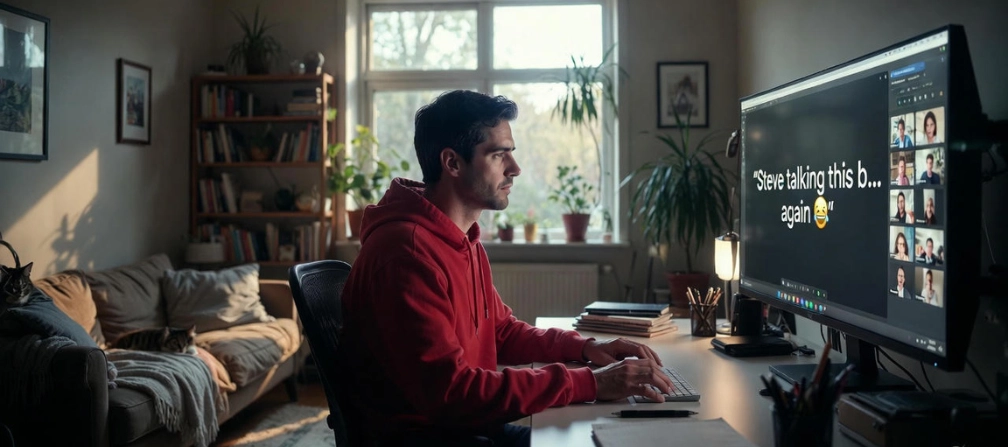
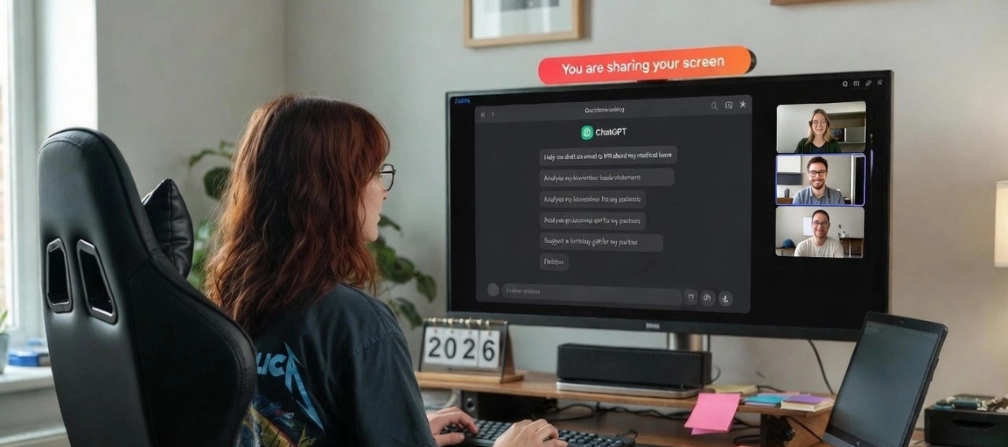
- Screen sharing often leads to accidental privacy leaks, from message pop-ups to exposed tabs and files.
- The biggest risks come from notifications, full-desktop sharing, and background chat/voice apps like Discord.
- Even small details (filenames, recent files, PDF previews) can reveal sensitive personal or company information.
- Using Do Not Disturb, sharing a single window, and keeping personal apps closed eliminates most screen-sharing risks.
- Screenshot-based monitoring tools create the same exposure problems by recording everything on the screen.
- WorkTime avoids screen capture entirely, offering privacy-first, non-invasive monitoring trusted in regulated industries.
In this article
When screen sharing turns into accidental exposure
Screen sharing looks simple - click a button, show your screen, and get on with the meeting. But in reality, it’s one of the easiest ways to accidentally leak something you never meant to show. A pop-up message flashes for half a second, a private tab sits forgotten in the corner, a chat app quietly listens in… and suddenly your “quick presentation” becomes an unexpected overshare. These mistakes happen to everyone, from busy employees to tech-savvy teams. And they’re far more common (and far more risky) than most people realize. From exposing confidential documents to unintentionally revealing personal life details, one small oversight can put your privacy or your company’s reputation on the line. Let’s take a look at the screen-sharing privacy mistakes people still make in 2026. From pop-up notifications to forgotten tabs, you’ll see what to watch out for, the simple habits that prevent slip-ups, and how tools like WorkTime keep your workflow protected without ever touching your screen content.Prepared by the WorkTime team, experts in non-invasive productivity monitoring, providing insights on how to keep your screen sharing safe and protect sensitive information during online meetings.
Top 5 screen sharing risks 2026
Pop-up notifications - the biggest screen-sharing risk
Pop-ups are the No. 1 cause of accidental exposure. Every major messenger shows sender names and message previews by default, and it takes just one unexpected notification to spill personal chats, private info, or confidential work messages to everyone on your call. Screen sharing privacy is at serious risk if you don’t handle notifications carefully. One pop-up = instant overshare. One Reddit user shared a story that was both cringeworthy and unforgettable. A guy is sharing his screen, carefully walking through slides, when Slack decides to strike. Notifications start popping up - private messages from coworkers joking about the endless slides and complaining about the dull charts. And, of course, everyone sees it. Confusion turns into nervous laughter, a few team members leave the call, and the presenter is left embarrassed, trying to regain control of the screen and the meeting.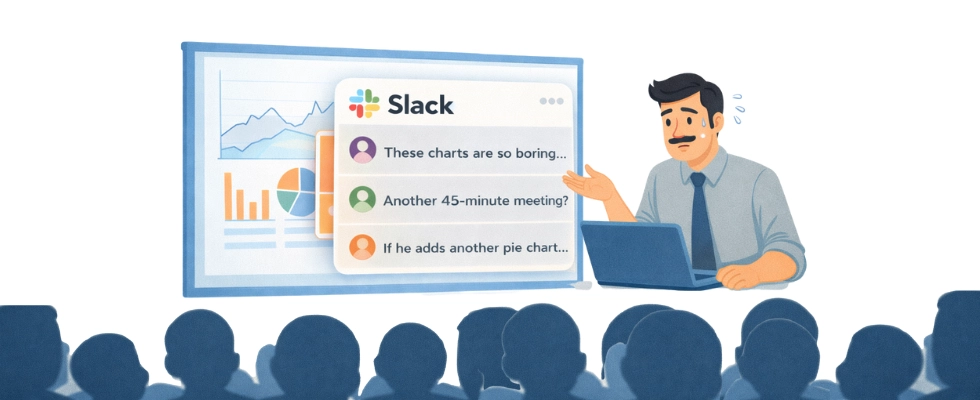
Watch out: These apps can expose your private messages
Here’s a quick look at how different apps can betray you if you’re not careful:- iMessage. The notifications display contact name, message preview, emojis, images, and stickers right on your screen. A text from a friend during a meeting? Boom - everyone sees it.
- Facebook Messenger. Messenger goes big: sender name, profile photo, message text, and media thumbnails all pop up. That GIF you thought was private? Not anymore.
- WhatsApp. It shows sender name, message text, emoji, and even voice or photo previews. Group chats can also be exposed. This is one of the classic privacy risks in online meetings.
- Telegram isn’t much safer by default. Notifications reveal sender name, message, stickers, and reactions. Silent messages may not beep, but they still show on screen.
- Signal actually gives you a head start: enabling “Show name only” hides the message text. But if left at default, it still shows sender + preview, so don’t get too comfortable.
- Slack notifications include sender, message text, workspace, and channel details. One simple ping can reveal more than you intended.
- Microsoft Teams. On Windows, Teams duplicates notifications through the system panel. Even minimized, your sender + preview can pop up twice. Not ideal.
Why this keeps happening
Most apps prioritize convenience over screen share security. Default notification settings show both the sender and message preview, and they appear across macOS, Windows, iOS, and Android. During screen sharing, your system sees these notifications as part of your interface. So they show up for everyone in real time.How to stop notifications from ruining your meeting?
The good news? You can fix this with a few simple steps:- Disable message previews. This way, your messages stay private;
- Hide sender names. Only the app name is visible in this case;
- Use "Do Not Disturb" mode. Keep distractions and surprises off your screen;
- Pause notifications during calls and meetings. Most apps and OSs make this easy.
2. Sharing your whole desktop instead of a single window
Clicking “Share Screen” and selecting your entire desktop might seem like the easiest option. But this shortcut can backfire. Unlike a single app or window, full-desktop sharing exposes everything currently on your screen. Just a second, and your private apps, emails, or tabs can become public and awkward. Just another forum story. During a routine team meeting, a colleague completely forgot her screen was still being shared. While everyone was focused on the presentation, she started typing a very personal, completely non-work-related message to a friend. Midway through, she realized everyone in the meeting could read it. Her face went bright red as she scrambled to close the chat and stop sharing.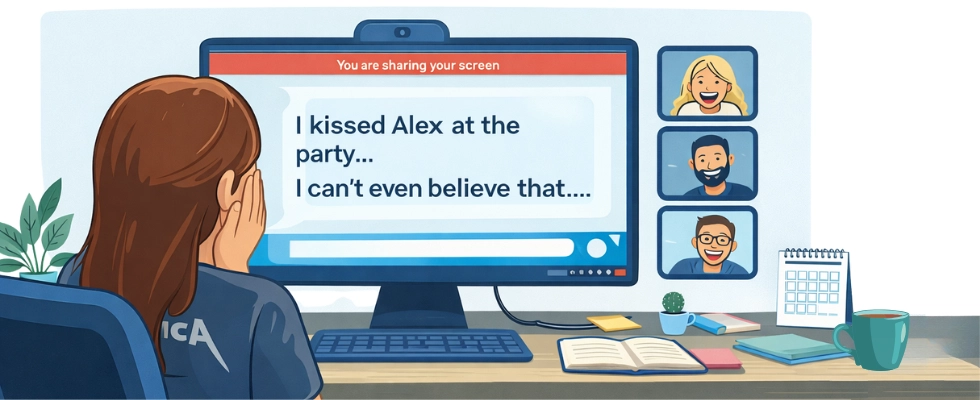
- Browser tabs from shopping lists to sensitive research;
- Emails & chats;
- Confidential files like spreadsheets, invoices, and banking documents;
- Non-work apps, including games, media players, or utilities;
- Background distractions like music, GIFs, or videos can interrupt a professional presentation.
How to prevent screen sharing leaks?
Simple habits can prevent these overshares:- Share a single window, not your entire desktop. Focus attention and keep everything else private.
- Use a separate browser or profile for work. This way, you can keep personal and professional tabs fully separated.
- Close unrelated apps before meetings to avoid accidental distractions or embarrassing visuals.
- Create a “clean desktop” preset for presentations. For example, you can try to pin only essential apps and folders for stress-free sharing.
3. Keeping non-work chat/voice apps open while screen sharing
Discord notifications are more dangerous than they seem. DMs, pings, and call alerts can appear at any moment, exposing private messages or channels to everyone. Even sharing the Discord window can reveal chats or channels you never meant to show. Many companies now use Discord for remote meetings, taking advantage of voice channels and screen sharing. Just imagine this: you’re presenting quarterly results in a Discord voice channel, slides open with revenue numbers, forecasts, and client updates meant strictly for your team. But a co-worker’s Discord friend has joined the channel or clicked a shared link they weren’t supposed to and is listening in. Every confidential figure and internal plan is being overheard by someone outside the company. You don’t notice. Your team doesn’t notice. And just like that, private information is no longer private, all because Discord was left accessible in the background.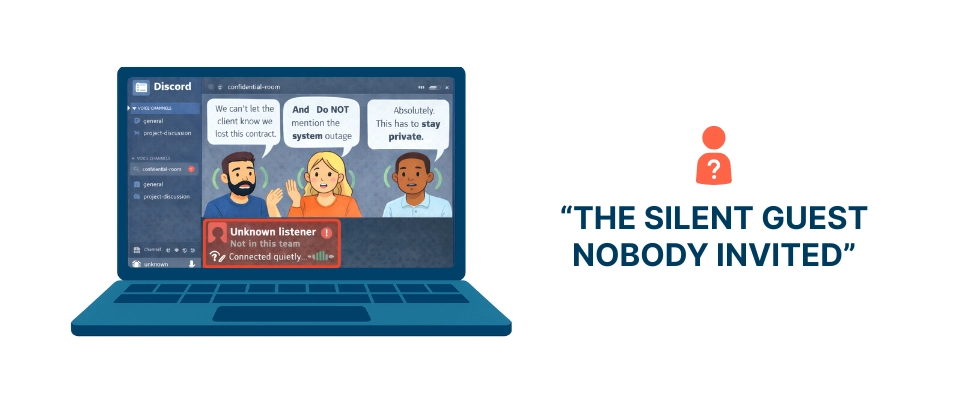
Why Discord can ruin your screen share
When Discord is running in the background, it doesn’t just “sit there.” It actively layers notifications, alerts, and previews over whatever you’re sharing. These features can turn a simple presentation into a stream of accidental reveals. Here’s where things usually go wrong:- Message pop-ups over your shared screen. Every incoming DM or mention can instantly reveal private conversations.
- Call or banner notifications. Mid-presentation alerts are distracting and can expose personal information.
- Server and channel updates. Frequent notifications clutter your screen and look unprofessional.
- Sharing the Discord window. You may accidentally reveal unrelated chats, channels, or participants.
| App | Message pop-ups | Call banners | Channel/ server notifications | Active chat windows visible | Sensitive alerts (DM previews) | Friends pop-ups | Visible username/ server activity |
|---|---|---|---|---|---|---|---|
|
Discord |
 |
|
|
 |
|
|
|
|
Mumble |
|
|
|
|
|
|
|
|
TeamSpeak |
|
|
|
|
|
|
|
|
Guilded |
|
|
|
|
|
|
|
|
Steam Chat |
|
|
|
|
|
|
|
|
Element (Matrix) |
|
|
|
|
|
|
|
How to avoid oversharing?
A few simple actions can keep your non-work chat and voice apps from causing trouble:- Quit Discord (or any similar app) before meetings;
- Disable notifications across your system;
- Turn on "Do Not Disturb" mode;
- Keep personal apps closed while presenting;
- Disable OS-level notifications for these apps.
4. Exposing private info/browser tabs while screen sharing
Even the most careful professionals can accidentally expose sensitive information while sharing their screen. Often, the risk comes from the files and tabs left open on your desktop. A single glance at your screen can reveal private data without you realizing it. Why is this so common? It’s how we organize our digital space. Many people use the same device for personal and professional tasks, so private files and browser tabs often live alongside work documents. Cloud-sync apps, browsers, and productivity tools remember recent files and tabs, making it easy for sensitive information to appear on screen during meetings. This kind of thing happens again and again - Reddit is full of stories like this. One guy shares his screen during a team meeting. Everything’s fine, then - bam - a Gmail tab shows an interview confirmation with a competitor. Suddenly, everyone sees it. Awkward glances, silent reactions, and private career plans exposed in seconds. The worst part? He was fired the next day. All because of a single shared tab.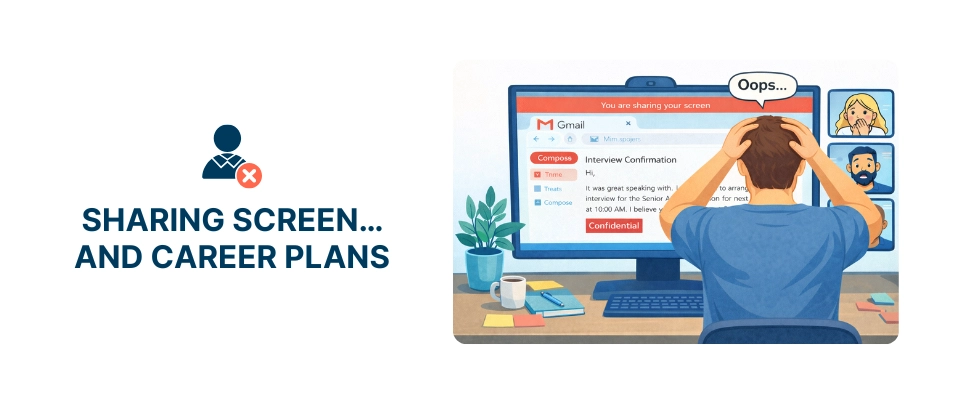
What’s at risk?
Here’s what can accidentally show up during screen sharing:- Desktop or taskbar files. Names like “salary2025.xlsx” or “drug_test_results.docx” can reveal sensitive info.
- PDF previews. A quick hover can show content without opening the file.
- Open browser tabs. Personal accounts, emails, or confidential tools may be visible.
- Cloud folders. Family photos, receipts, and HR documents can pop up unexpectedly.
- Recent files list. Finder, Explorer, and Office apps track activity and may expose sensitive data.
Avoid accidental exposure: what to do
You can protect your screen with just a few habits:- Close everything you don’t need;
- Hide your desktop icons to keep private files invisible;
- Clear your recent files across Finder/Explorer, Office, and PDF apps;
- Use a separate work browser or profile;
- Keep personal files off your work device entirely.
5. Not pausing screen sharing when searching for files
You think you’re ready for the meeting, you’ve shared your screen, and everything looks perfect… until you need a document you didn’t prep. A quick search through the folders while screen sharing can compromise your privacy. Just a few seconds, and your sensitive or personal files are visible to everyone. Small habits, big privacy consequences.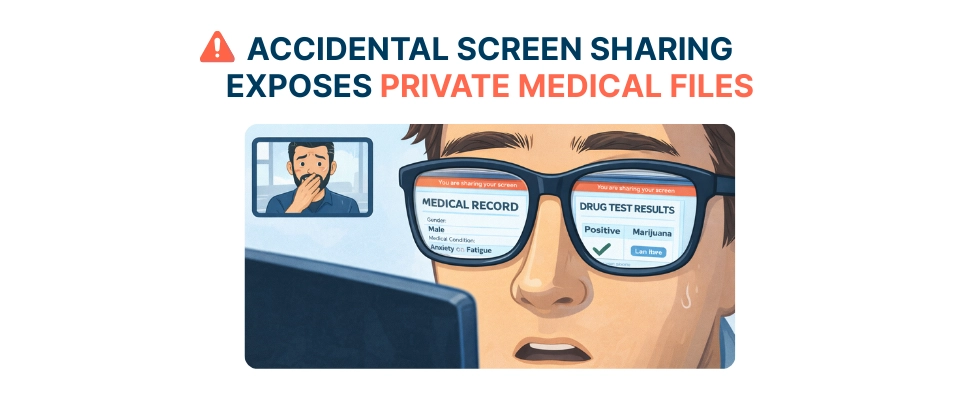
What you might accidentally expose
A quick search can give viewers a peek at:- Sensitive project files. Your internal initiatives become visible;
- Personal documents. Anything from notes to PDFs can pop up unexpectedly;
- Unfinished work. Drafts or reports not ready for eyes outside your team;
- Private folders. “Personal,” “Taxes,” or “Medical” folders reveal unrelated private info;
- Client or confidential info. Names and details that must stay hidden.
How to stay safe and confident?
Prevent accidental screen-sharing slips with three simple steps:- Use a clean folder with only the files you need.
- Pause sharing before opening anything new.
- Keep a dedicated meeting folder separate from personal or unrelated work.
Screen sharing & screenshot monitoring: privacy-risk twins
Screen sharing comes with many privacy traps. Anything that appears on the presenter’s screen becomes visible to everyone in the meeting - and if the meeting is recorded, those moments can be rewatched, stored, or even forwarded long after the call ends. Screenshot recording in employee monitoring is essentially the same process, but automated and silent. It captures an employee’s screen and stores those images in a database.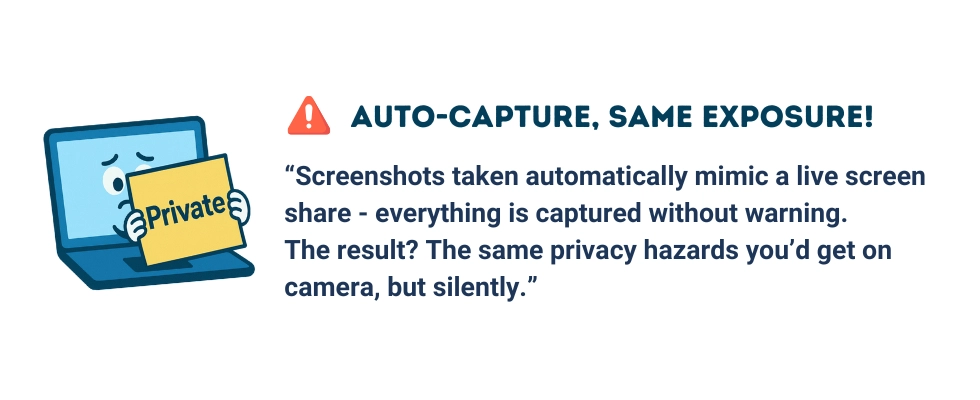
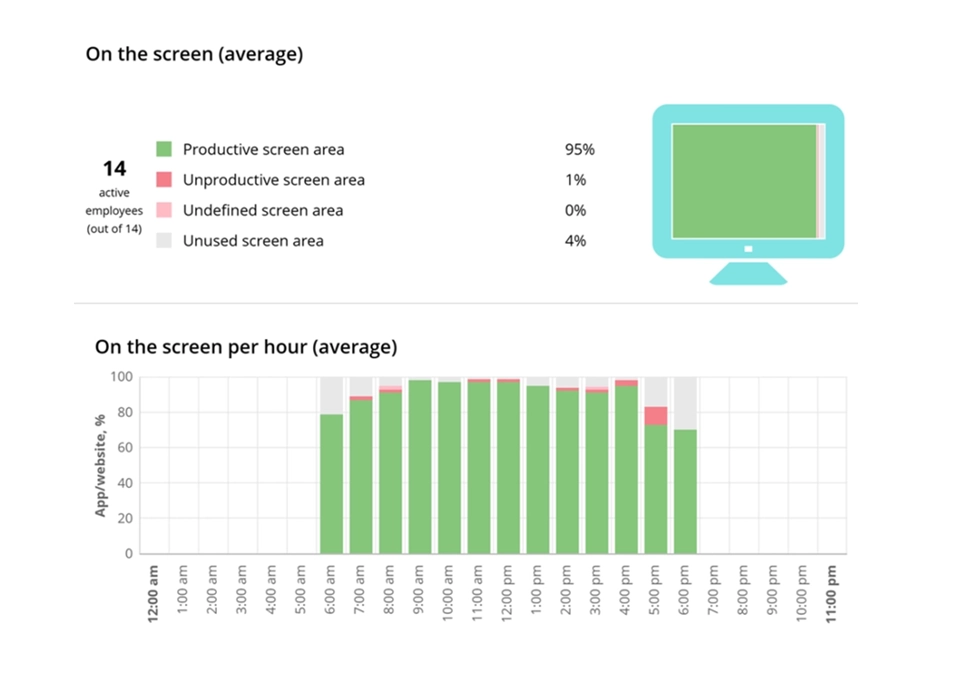

Understand how productively employees use their screens without screenshots or spying. It includes a clear screen productivity % to support transparent, privacy-respecting monitoring.
Start free trial8 reasons WorkTime does not use screenshot recording
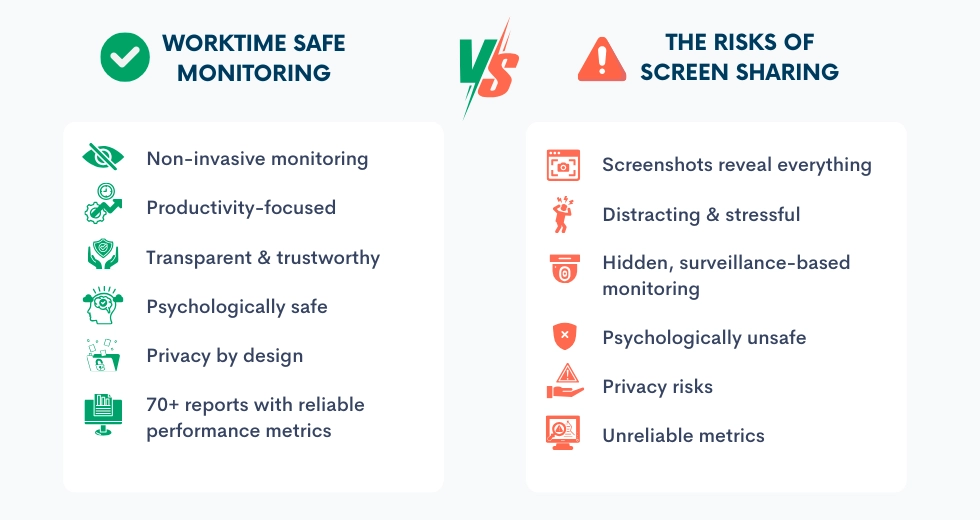
1. Visual data is risky. Accidental screen sharing can instantly reveal personal messages, financial information, and internal documents. Screens are simply too sensitive to capture safely. WorkTime avoids this risk entirely by never recording screen content. 2. Focus on productivity, not screenshots. Screen sharing errors prove that monitoring should target meaningful work signals, like KPIs, not cluttered, unreliable screenshots. WorkTime measures productivity without ever capturing what’s on your screen.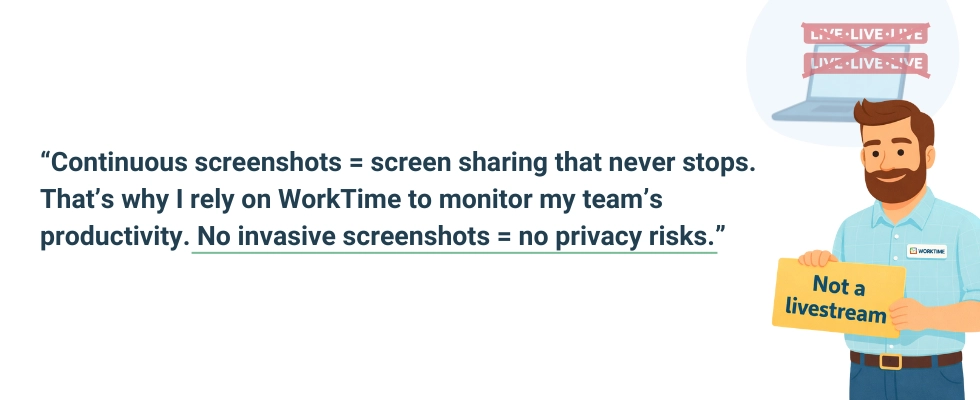
Quick safe-habits checklist for screen sharing
Screen sharing slips happen to everyone. With so many tabs, apps, and alerts lighting up your screen, even a small moment can expose the wrong thing. How to share screen safely? To make it effortless, we created a short, privacy-first checklist your team can run through before any call. Keep your next meeting safe - download our free PDF.Share screens risk-free, monitor productivity non-invasively - with WorkTime
Screen sharing is full of hidden pitfalls. One stray notification, an open tab, or the wrong window can instantly expose private data. And invasive productivity tools that take screenshots are no different. They create a permanent record of everything on your screen, turning every moment into a potential privacy leak. WorkTime takes a different approach - safe, transparent, and non-intrusive. We track productivity without ever capturing screens. Thus, you get valuable insights without risking sensitive data. Your team stays productive, focused, and confident. Discover the WorkTime difference - get started now!Try WorkTime now!


FAQ
Is screen sharing a privacy risk?
Yes. Screen sharing privacy can be compromised if notifications, browser tabs, or personal files are visible. Even a glance at a private message or document can create an accidental screen-sharing incident. Awareness of potential mistakes is key to protecting sensitive information.Can people see notifications when I share my screen?
Absolutely. Most messaging apps, like Slack, Discord, Teams, or WhatsApp, display pop-ups and message previews by default. This is one of the biggest screen-sharing risks - private conversations or confidential info can appear mid-meeting. To prevent this, enable hiding notifications or use "Do Not Disturb" mode during presentations.How to share your screen without exposing private information?
To ensure screen share security, follow simple screen sharing safety tips:- Close non-essential apps and browser tabs.
- Share only a single window instead of the entire desktop.
- Clear “Recents” lists in apps and operating systems.
- Use a separate browser or profile strictly for work.
- These steps help prevent accidental data leaks and ensure your video conferencing privacy is maintained.