


TL;DR
- DeskTime combines automatic time tracking with workforce management. It tracks app and website use, calculates productivity scores, and includes project time and attendance features.
- The plans cover different needs. Pro was $6.42 per user per month, billed annually, in the September 2026 pricing snapshot. Premium was $9.17 and added screenshots, integrations, API access, and shift scheduling. Enterprise was custom-priced for 200 or more users.
- The pricing page listed a 14-day trial and paid plans. It did not list a permanent free tier.
- The available feedback includes praise and concerns. Review excerpts describe easy timekeeping, while some mention app categorization and interface preferences. Feedback should be read in the context of the reviewer’s role and setup.
- Screenshots are optional. Pro tracks time and activity without screenshots. Premium adds the option, while Private Time lets employees pause tracking for personal use.
- WorkTime offers 80+ productivity reports without screenshots, screen recording, or keystroke logging.
In this article
What is DeskTime?
DeskTime is automatic time-tracking and workforce-management software that starts tracking when a computer powers on and stops when it shuts down. It runs in the cloud with desktop apps for Windows, macOS, and Linux, plus a mobile app. DeskTime answers “How are working hours spent, and on what?” through automatic tracking, app and URL monitoring, and productivity scores. It adds project and task tracking, billable-hour calculations, an absence calendar, and shift scheduling. These functions bring timekeeping and workforce planning into one product. Its reporting describes computer activity and how that activity has been categorized. A productivity score is useful context for a discussion about work patterns, but it should be read alongside the tasks and results expected from each role.What DeskTime monitors
DeskTime tracks time, application and website use, document titles, and, on its higher plans, optional screenshots. The table shows plan features as of September 2026.| Capability | What it tracks or provides | Availability |
|---|---|---|
|
Automatic time tracking |
Computer work time without manual start or stop for core tracking |
Pro and up |
|
Productivity calculation |
Apps and sites sorted into productive, unproductive, or neutral categories, with a productivity score |
Pro and up |
|
App and URL tracking |
Applications opened and websites visited with time spent on each |
Pro and up |
|
Document title tracking |
Titles of documents and files worked on |
Pro and up |
|
Project and task tracking |
Time by project and task, billable hours, and project cost calculations |
Pro and up |
|
Offline and private time |
Manual entry for offline work, plus a Private Time mode that pauses tracking for personal use |
Pro and up |
|
Absence calendar |
Vacation, sick leave, and absence tracking |
Pro and up |
|
Automatic screenshots |
Optional periodic screenshots of the employee's screen |
Premium and up |
|
Integrations and API |
Additional connections to other business tools and API access |
Premium and up |
|
Shift scheduling |
Shift planning with arrival and departure tracking |
Premium and up |
DeskTime pricing in 2026
DeskTime's September 2026 pricing page listed Pro at $6.42 per user per month and Premium at $9.17, both billed annually before tax. Enterprise pricing was custom, with a listed size of 200 or more users. The main budget decision is whether Pro includes the features on your requirements list. Shift scheduling and the broader integrations and API package require Premium, even if you do not plan to enable screenshots. That is a plan difference to include in the comparison, rather than an additional charge outside the listed price. The page offered a 14-day free trial and described an annual-billing saving equivalent to roughly one month. The figures above use annual billing; monthly billing has different prices. No permanent free tier was listed. The pricing page, checked again in September 2026, showed the same Pro and Premium annual rates.DeskTime pros and cons
DeskTime's strengths center on automatic timekeeping and the combination of activity, project, and attendance data. The main considerations are plan coverage and how the reports map to your team's work.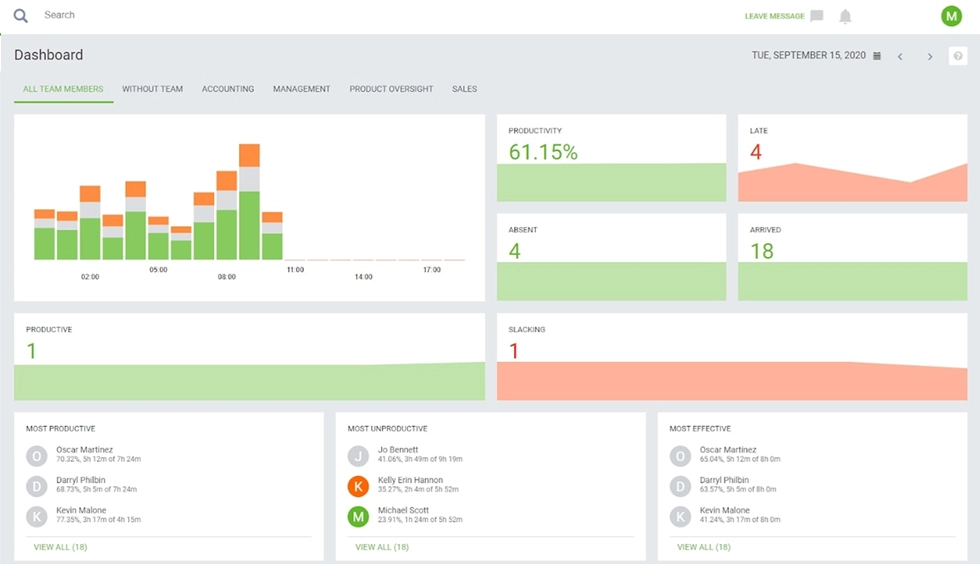
- Automatic core timekeeping. Employees do not have to remember to start a timer for computer activity.
- Support for Windows, macOS, and Linux. The desktop apps cover all three platforms.
- A daily view of app and website use. Managers can see how tracked computer time is distributed.
- Project and billable-hour tracking. Time can be assigned to projects and tasks, with cost calculations for client work.
- Private Time controls. Employees can pause tracking during personal use. Screenshots are optional rather than a requirement for time tracking.
- Attendance and planning features. The absence calendar and Premium shift scheduling extend the product beyond activity reports.
- Productivity categories need to match the role. App and website labels require review before they can support a useful interpretation of work patterns.
- Some management features require Premium. Shift scheduling, the integrations and API package, and screenshots are outside the Pro plan.
- No permanent free plan was listed. The September 2026 pricing page offered a trial followed by paid plans.
- Interface preferences vary. Review excerpts include criticism of the interface, alongside positive comments about ease of use. Assess navigation against the reports your team will use.
DeskTime reviews: what users say
DeskTime reviews include positive comments about straightforward timekeeping and more critical comments about app categorization and the interface. These are user experiences rather than guarantees of how the product will perform for another team. A Capterra review excerpt described occasional misclassification of apps or websites. A Trustpilot excerpt praised simple day-to-day timekeeping. These comments point to useful evaluation questions: does the categorization match your work, and is reviewing tracked time straightforward for the people who will use it? An earlier PCMag review of DeskTime Pro, published in 2020, discussed its time-tracking and basic employee-monitoring capabilities. That review provides historical context; its plan details should not be read as the September 2026 offer.DeskTime setup: productivity categories, interface, and screenshots
Three practical checks help put DeskTime's reports in context: category setup, report access, and screenshot settings. Productivity categories: DeskTime sorts apps and sites into productive, unproductive, or neutral groups. Review those labels against actual tasks. For example, a training video and a personal video can use the same website. The label is a starting point for interpreting activity, not a direct measure of work quality. Report access: The product combines time, project, attendance, and activity information. Check how easily each intended user can reach the reports they need, whether that is a daily time summary or a project cost view. This is more useful than treating an individual reviewer's preference for the interface as a universal limitation. Screenshot settings: Screenshots are optional on Premium and above. Decide whether the team needs screen images, who should have access to them, and how the setting fits the monitoring policy. DeskTime also provides Private Time, and Pro does not include screenshots. The presence of a screenshot feature does not mean every deployment uses it.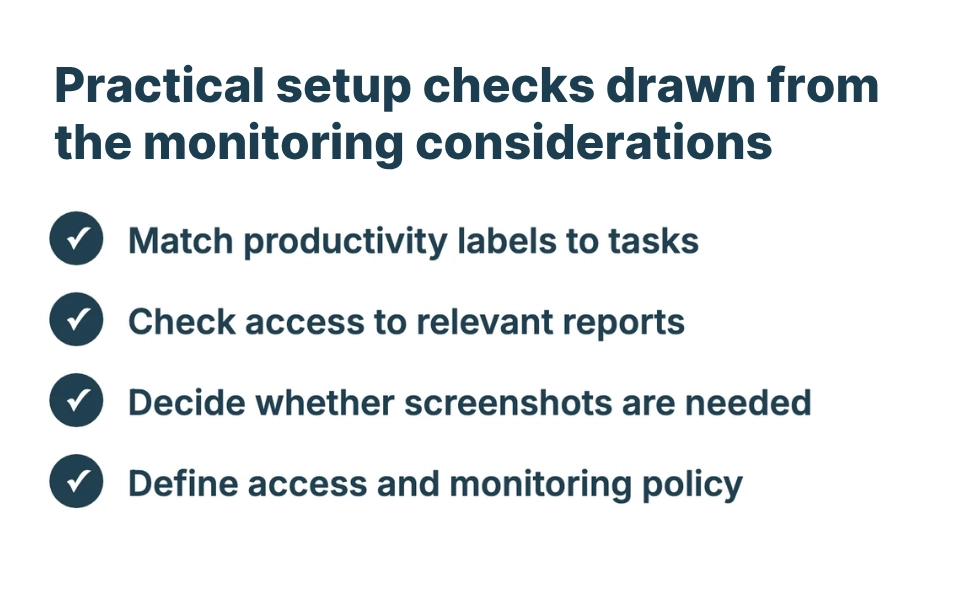
DeskTime's scope and evaluation criteria
DeskTime's feature set covers automatic computer timekeeping, project allocation, billable-hour calculations, attendance, and scheduling. Its Pro and Premium plans divide those functions, while the Enterprise plan adds account support and custom API options for larger organizations. For an evaluation, map the requirements before comparing prices:- Which roles need project or billable-hour tracking?.
- Is shift scheduling required, or is the absence calendar enough?.
- Which integrations are needed, and which plan includes them?.
- How will productive, unproductive, and neutral categories be defined?.
- Will screenshots be enabled, and how will monitoring be explained to employees?
A non-invasive alternative to DeskTime
For organizations whose priority is in-depth productivity analytics without screen capture, WorkTime offers non-invasive employee monitoring. We monitor productivity scores, active and idle time, attendance, app usage, and work patterns across employees, teams, and departments.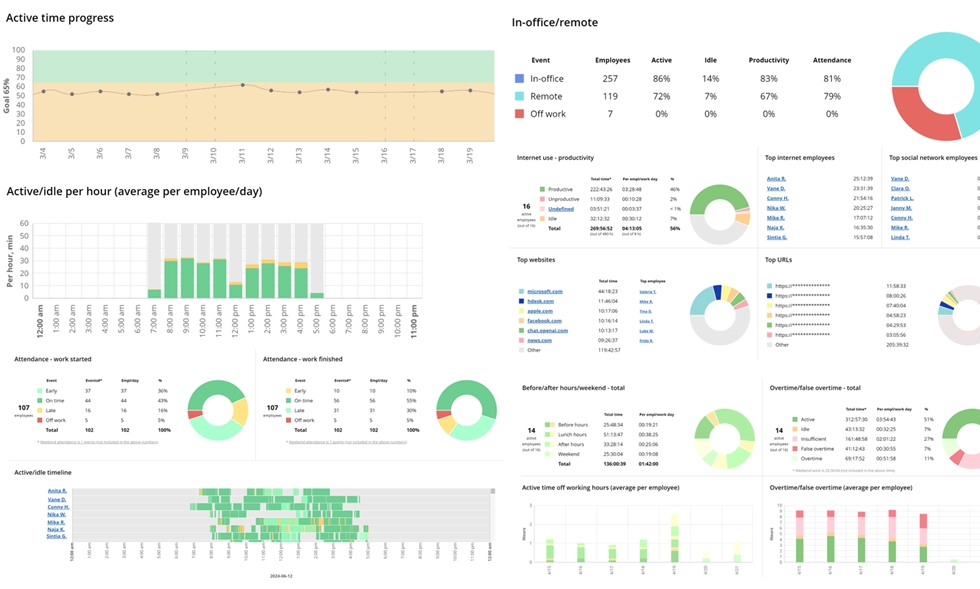

Want deeper insights into workforce performance? Explore 80+ WorkTime reports to analyze productivity and activity across office and remote teams - all without capturing personal content!
Start free trial| Dimension | WorkTime |
|---|---|
|
Main functions discussed here |
Non-invasive employee monitoring and in-depth workforce productivity analytics |
|
Screenshots |
No screenshots at any tier |
|
Reporting |
80+ reports across the platform; productivity monitoring starts with Premium, and Enterprise adds department reports |
|
Compliance |
HIPAA-safe, GDPR-safe, and GLBA-safe modes |
160 overtime claims reduced to 30 justified claims!
Industry
Insurance
Employees
250
This U.S. insurance company used WorkTime reports to identify justified overtime claims and save around $4,000 per month.
Read more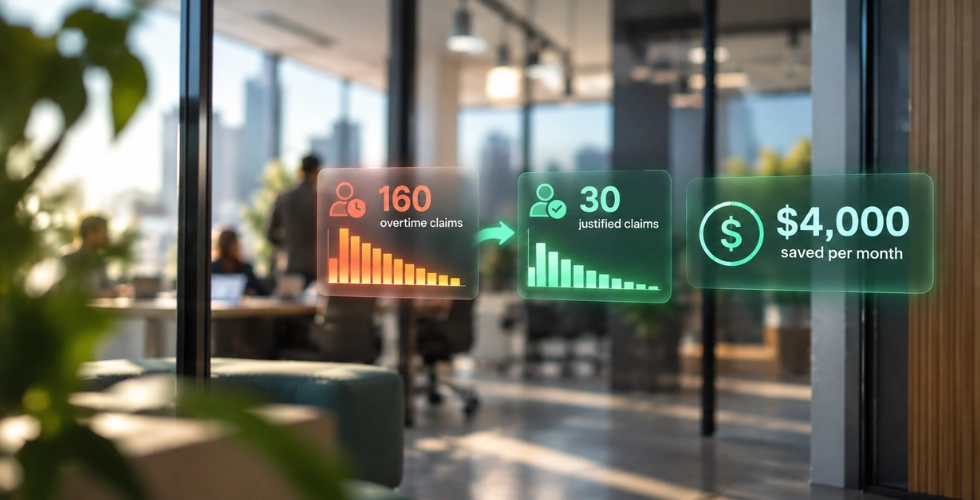
- HIPAA-safe mode restricts URL and window-related data;
- GDPR-safe mode can disable out-of-office IP monitoring and remote device names;
- GLBA-safe mode avoids optional fields that could contain nonpublic personal information.
Conclusion
DeskTime brings automatic time tracking, app and website reporting, project costs, and attendance features into one product. Its useful strengths include automatic core timekeeping, desktop platform coverage, and Private Time. The main purchasing distinctions are plan coverage and the reports needed for each role, with Premium adding screenshots, integrations, API access, and shift scheduling. WorkTime provides a different focus: non-invasive employee monitoring with in-depth productivity analytics and transparent monitoring. It tracks attendance, activity, and productivity trends without screenshots or screen recordings. For teams seeking that approach, try WorkTime free for 14 days, with no credit card required.